Website visibility checklist for non-programmers
Seven checks you can do in a browser in ten minutes, what each one means in plain language, and what to ask your developer if something looks wrong.
By Metryn · Updated 16 October 2026 · 5 min read
You don't need to read code to find most of the problems that keep a site from being found. You need a browser, ten minutes, and a willingness to look at three plain-text addresses.
1. Read your robots.txt
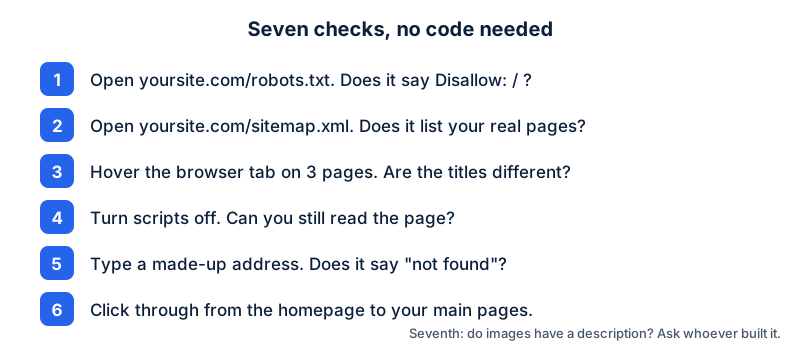
Type your address followed by /robots.txt. You'll see a few lines of plain text. The ones that matter are User-agent (who the rule is for) and Disallow (what they shouldn't fetch). A single Disallow: / under User-agent: * means "nobody may read anything." That line is often left over from a site under construction, and it's the first thing to look for.
Google describes robots.txt as a way to manage crawler traffic, not a way to hide pages. If you want a page kept out of results, that's a different tool (a noindex tag), and your developer should know which.
2. Open your sitemap
Try /sitemap.xml. You should see a list of your real pages, not an error and not a list of pages you deleted last year. Google says a sitemap is a hint and doesn't guarantee crawling, and that small, well-linked sites may not need one. If you do have one, it should be accurate. Many website builders create it for you.
3. Look at the page titles
Open three different pages and look at the text on the browser tab. If they all say the same thing, that's a problem. Google asks for a unique, descriptive title on every page, and says repeated or boilerplate titles don't help people tell pages apart.
4. Turn scripts off and look again
In Chrome you can do this from the site settings, under JavaScript. If your page goes blank or loses its main text, a lot of what you see depends on scripts running. Google can handle that and still recommends server-side rendering, because, in its words, not all bots can run JavaScript.
5. Check that missing pages say so
Type a made-up address like /this-page-does-not-exist-123. You should get a page that says it wasn't found. If it quietly shows your homepage or a friendly error that looks fine, ask your developer to check that it returns a real 404 status. Google treats the two very differently.
6. Click through the site
From the homepage, try to reach your main pages with plain clicks. Google says every page you care about should have a link from at least one other page on your site, and that it follows regular links with a real address. Pages that only appear after a search or a filter are the ones most likely to be missed.
7. Ask about image descriptions
Ask whoever built the site whether images have a description (alt text) written for people, not stuffed with keywords. It's the one check here you can't do from the outside without looking at the source.
What to say to your developer
- "Does robots.txt block anything it shouldn't, on every subdomain?"
- "Is the main content in the HTML the server sends, or does it need scripts to appear?"
- "Do missing pages return a real 404?"
- "Is there one preferred URL for each page, with the others redirecting to it?"
- "Do titles and descriptions come from the page, or from a template that repeats?"
Questions people ask
What do I tell my developer if I don't understand the answer?
Ask them to show you, not tell you. 'Open the robots.txt, and show me what it says about all crawlers' is easier to verify than 'is it fine?'. Everything in this checklist can be demonstrated in a browser in a few minutes.
I use a website builder. Can I even change these things?
Often yes, through the platform's SEO settings, but not always. If you can't change a setting, the useful question for the platform's support is whether it can, and how. Some things, such as page titles and alt text, are almost always editable.
How often should I check?
After any redesign, platform change, new plugin or domain change, and otherwise every few months. These problems usually appear right after a change.
Is a free scan enough?
It's a good first pass for the technical basics. It doesn't tell you whether your content is good, whether anyone wants it, or how you'll rank. Those are separate questions.
What to do this week
- Do the seven checks above, and write down what you find in plain language.
- Send the list to whoever maintains the site, with the examples.
- Ask them to confirm each item is fixed, and to show you how.
- Run a free scan to compare before and after.
Check your own site
Paste your address below. The free scan looks at robots.txt, your sitemap, access for the main AI crawlers and structured data, and shows what it found in seconds. It tells you what a machine can fetch and read. It doesn't predict rankings or citations.
Sources
- Google Search Central: Introduction to robots.txt: https://developers.google.com/search/docs/crawling-indexing/robots/intro
- Google Search Central: Sitemaps overview: https://developers.google.com/search/docs/crawling-indexing/sitemaps/overview
- Google Search Central: Influencing your title links: https://developers.google.com/search/docs/appearance/title-link
- Google Search Central: Link best practices: https://developers.google.com/search/docs/crawling-indexing/links-crawlable
- Google Search Central: HTTP status codes and network errors: https://developers.google.com/search/docs/crawling-indexing/http-network-errors
- Google Search Central: JavaScript SEO basics: https://developers.google.com/search/docs/crawling-indexing/javascript/javascript-seo-basics
Keep reading
Platforms, tools and checklists
Developer checklist: five curl commandsPlatforms, tools and checklists
Shopify stores: visibility fixes without codePlatforms, tools and checklists
Print-on-demand stores: product pages, not copies
Want to check one file yourself? Try the free AI crawler robots.txt checker or the llms.txt validator, or read how the score is built.